Timetables, attendance and teaching, in one place.
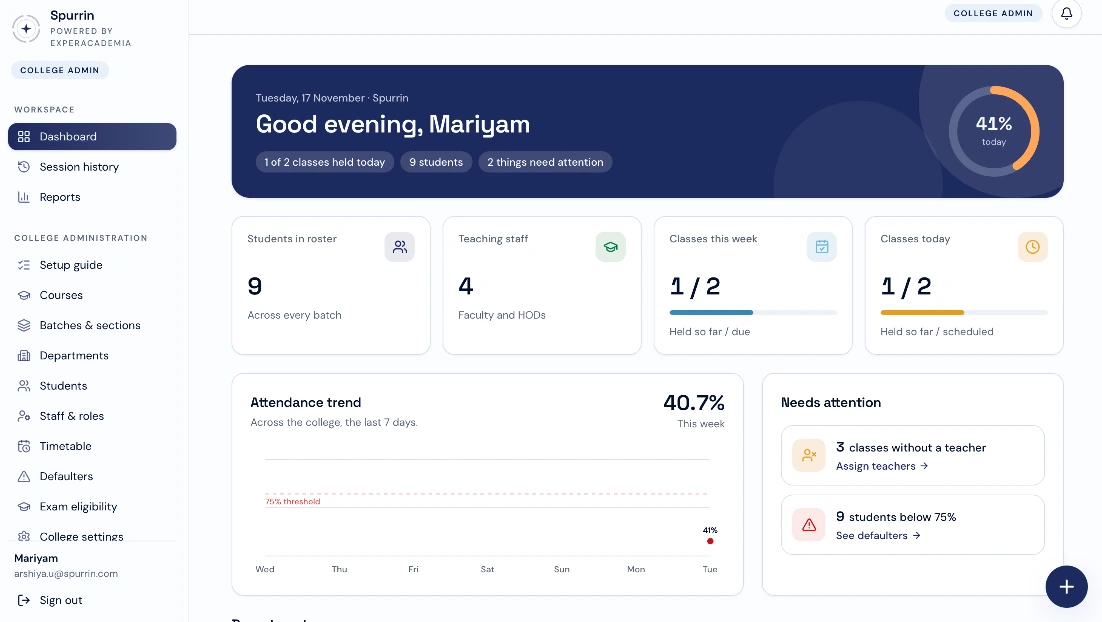
ExperAcademia gives each college its own space for students, timetables, face and QR attendance, learning content and reports, so the day's classes, who attended them and what was taught all live in one record.
ExperAcademia was previously called Exper Attend. It's the same product under a new name; existing customers don't need to do anything.
Colleges that run on timetables and attendance rules, and everyone who teaches or studies in them.
- College admins
- Set up departments, programs, sections, staff, students, the timetable and settings.
- HODs
- Oversee their department's faculty, timetable, attendance and leave, and approve timetables.
- Faculty
- Run classes, start attendance sessions, review attendance and publish learning content.
- Students
- Check in, and see their own attendance, timetable and learning content.
- Check-in device
- A classroom phone or tablet, opened from a session link, that takes face or QR check-ins with no login.
Timetables, attendance and teaching usually live in three different places. Then nobody trusts the numbers.
Roll calls are slow, and static QR codes are easy to screenshot and share.
Spreadsheet timetables miss clashes, holidays and last-minute changes.
Notes, assignments and tests are spread across chats, drives and paper.
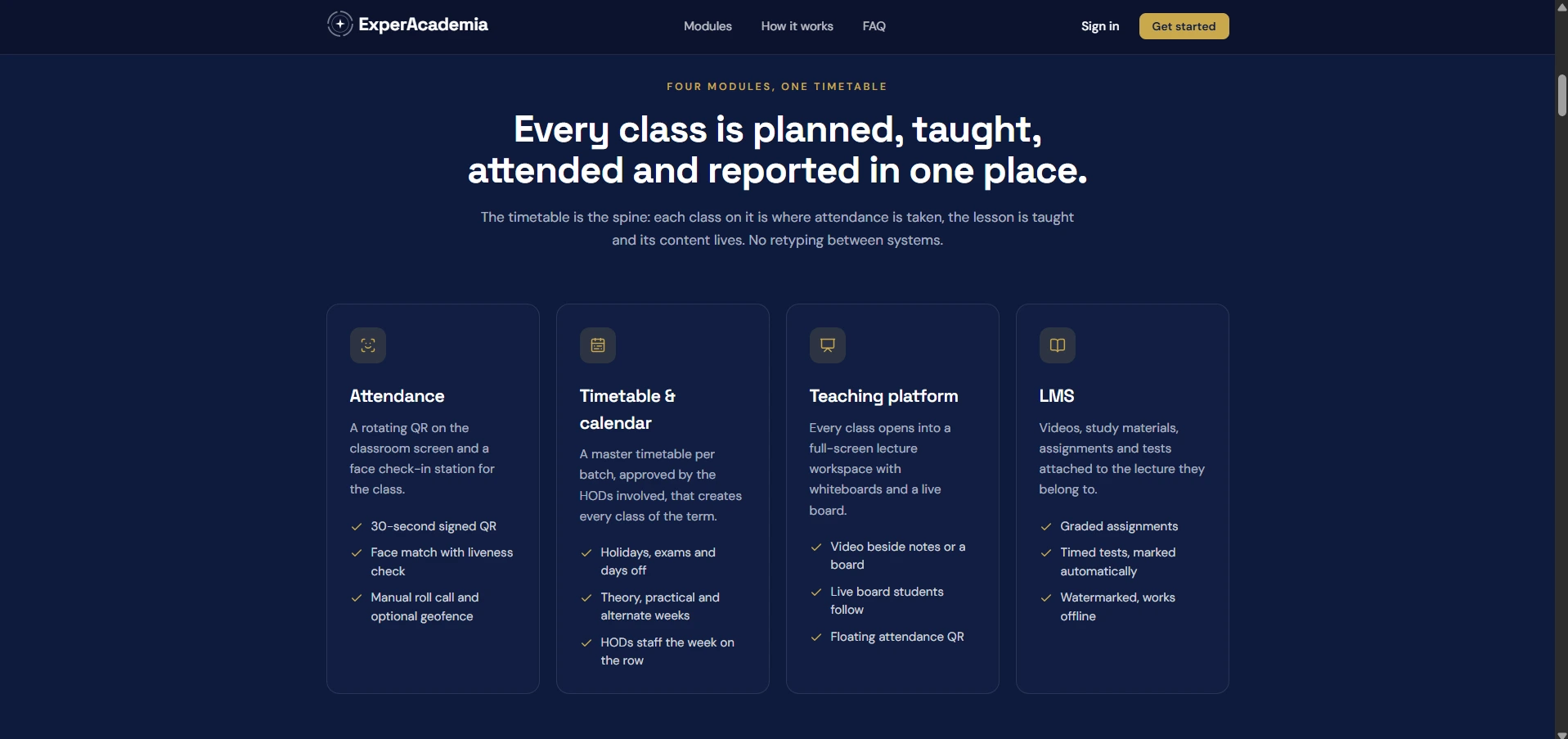
One platform for running a college's academic day, from the timetable to the report.
- 01
College set-up & people
Departments, programs, sections and the academic calendar, with email invites and CSV import for staff and students.
- 02
Timetable with approvals
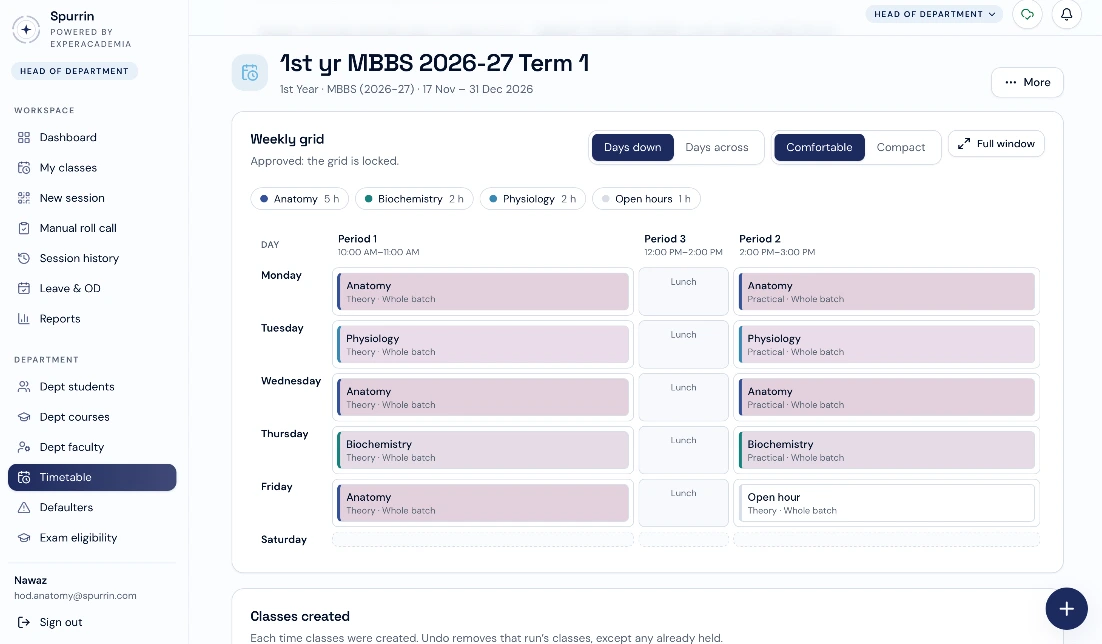
A weekly grid per batch, filled in by HODs and approved by every department before classes are created.
- 03
Clash & holiday checks
Overlapping periods and student clashes are flagged; holidays from the calendar are skipped.
- 04
Weekly plans
Cancel, add or move classes for single dates, and request another department's hours.
- 05
Face check-in
Students check in on a classroom device. A live face check refuses photos or screens held up to the camera.
- 06
Rotating QR & location
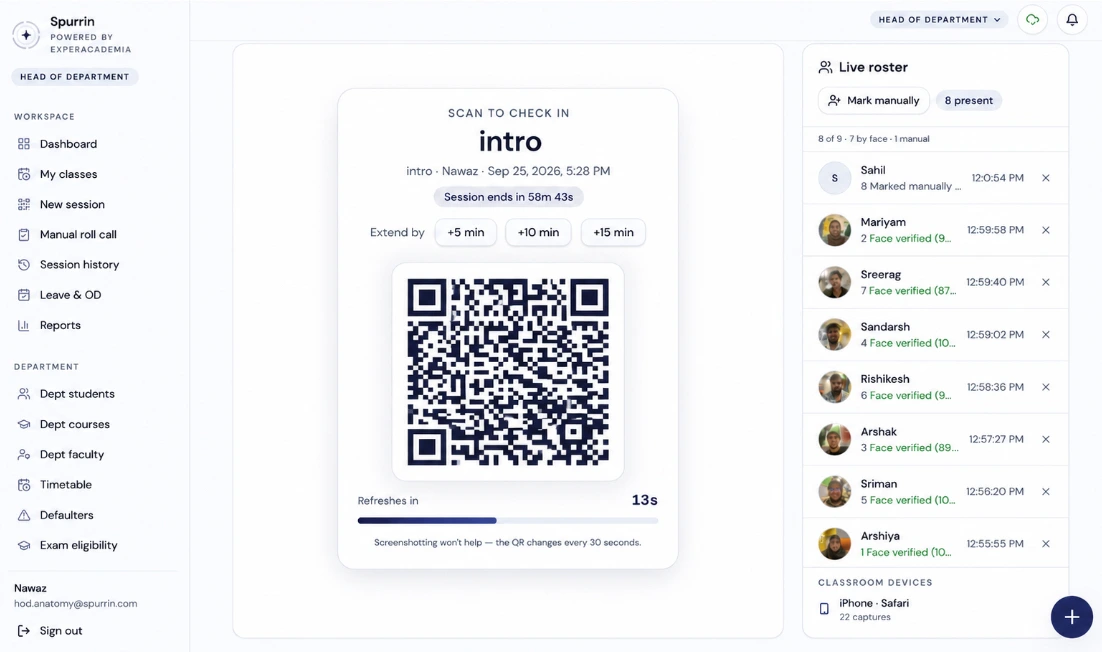
A QR that changes every 10–120 seconds activates the device, with an optional location radius.
- 07
Live roster & manual fixes
Faculty see who's present as it happens, and can correct records or use a roll-call checklist.
- 08
Leave
Students apply for leave; HODs review it in their department view.
- 09
Defaulters & eligibility
Attendance reports, defaulters below the college's threshold, and exam eligibility, each with CSV export.
- 10
Study materials
PDF, Office files, images and video, viewed in the page with a personal watermark, and copy and print blocked.
- 11
Assignments
Submissions, marks and feedback, with grades visible only once released.
- 12
Tests
Timed tests written by faculty, with results for faculty and students once published.
- 13
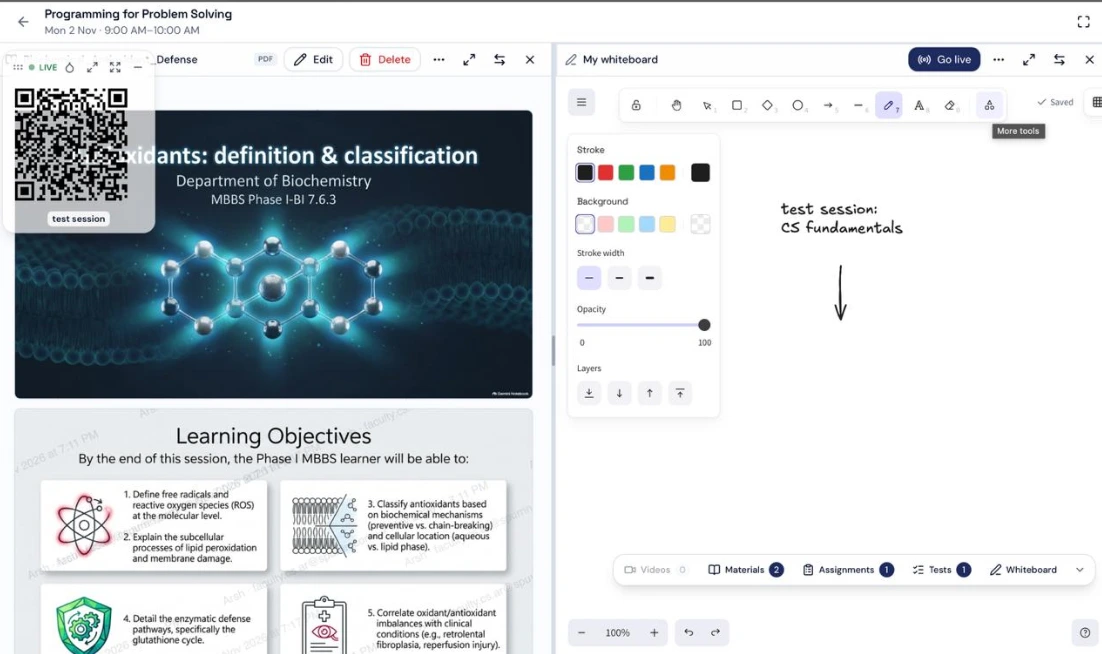
Whiteboard
Draw during a lecture and share the board with the class, live.
- 14
Multiple roles
One person can hold several roles and switch between them; each role sees only its own menu.
One classroom device. Every student checks in with their face.
- 01StartFaculty start a session from today's class, with an optional location radius.
- 02Show the QRA rotating QR code appears. It changes every 10 to 120 seconds.
- 03Activate a deviceA classroom phone or tablet scans it and becomes the check-in device.
- 04Face check-inStudents look at the camera one by one. Photos held up to it are refused.
- 05Fix by handFaculty watch the live roster and correct, add or remove records.
- 06CloseThe session ends, and attendance, defaulters and eligibility update.
Built once, approved by every department.
The admin builds a weekly grid for a batch, HODs fill in their department's subjects and teachers, and the timetable is approved before it becomes the term's dated classes. Clashes are flagged and holidays from the academic calendar are skipped.
- Draft
- Waiting for approval
- Approved
- Classes created
Week to week, HODs can cancel a class, add an extra one, move a day, or request another department's hour. The weekly plan also flags past classes where attendance wasn't taken.
Everything for a class, attached to that class.
Faculty teach from their timetable. Each lecture holds its own topic, content, attendance and tests.
- Topic
- What the session covers, shown to students under that class.
- Content
- Videos, study materials, assignments and tests, in the teacher's order.
- Whiteboard
- Saves as the teacher draws, and can be shared with the class live.
- Attendance
- Started straight from the class.
- Quick test
- A short test added to the lecture, written and published by the teacher.
- Medical
- Engineering
- Management
- Arts & Science
- Nursing & Allied Health
- Schools
- Coaching & Training
Each college gets its own space, with departments, programs, sections and an academic calendar set up to match how it runs.
ExperAcademia is set up around your college's structure before the first class is taken.
- 1
Your college space
Your college is created on the platform and its admin is invited.
- 2
Academic structure
Departments, programs, sections, the academic calendar and settings such as the attendance threshold and location rules.
- 3
People
HODs, faculty and students are invited by email or imported by CSV, and reference photos are added for face check-in.
- 4
Timetable
The weekly timetable is built, filled in by HODs, approved, and turned into the term's classes.
- 5
Go-live
Faculty start taking attendance and publishing content from their timetable.
- ExperHubThe academic management platform for medical colleges — CBME academics, competencies, logbooks, assessments and attendance in one system.
- PG LogbookA structured digital logbook for residents, with multi-level faculty, Unit Chief and HOD review and sign-off.
- Spurrin HostelStudent records, ward allocation, attendance, rule-based curfew monitoring, billing and payments for residential campuses.